

Invoices
In this section we'll be going over how to create an invoice and how to manage your invoices.
Create an Invoice
Once you have created a customer, created projects for that customer, and logged time for those project, it's time to get paid! For this, you'll need to create and send an invoice.
- You'll start by selecting the customer you want to invoice. From here the contacts for that customer will auto-populate.

The primary contact will be the primary recipient of your invoice. Any other contacts included in this invoice will be CC'd on the correspondence.
- Next you'll want to select one or more projects.
- Then, choose the time-period you'd like to bill for.
- Once the projects and dates have been selected, you'll be able to confirm the hours to be billed for this time-frame. You can adjust the dates accordingly to account for all the hours you'd like to bill.
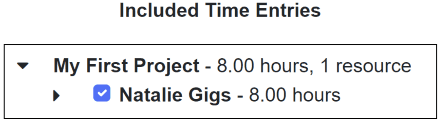
If you are unsure about the time frame and quantity of unbilled hours you have for a project, you can go to the reports section of IT-Gig and use the Unbilled Hours Report tool to find out.
- Don't forget to include expenses on your invoice! To do this, just check the box to include all outstanding expenses.
These expenses, if there are any, will appear underneath your unbilled hours. Make sure all of this looks correct so that you are properly billing your customer.
- From here you can choose your Net Terms. This will determine the due date for your invoice. For example, an invoice with net terms of "Net 30" will be due 30 days from the end of your billing period.
Changing the Net Terms changes your due date. So double check this before finishing and sending your invoice!
- We added the ability to customize your invoice a little further. You are welcome to add a custom P.O. (purchase order number), a custom invoice number, and/or a final comment to your invoice. These are for your own organizational and personal touch, but are not necessary to create an invoice.
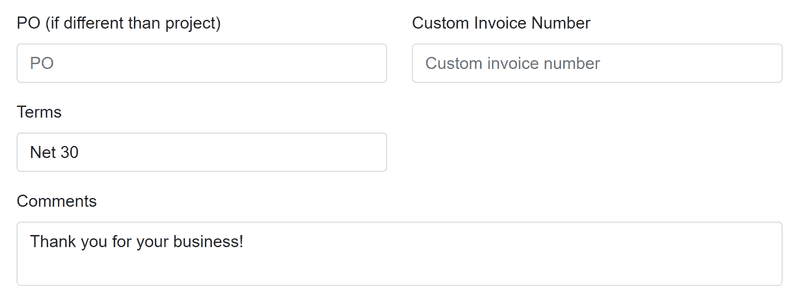
- We will allow you to review the invoice one last time before sending. Just confirm and send away!
Invoice attributes and fields
| Field | Description | Required |
|---|---|---|
| Customer | Choose the customer you would like to invoice | Yes |
| Contacts | One or more contacts that will receive invoice communication from ITGig | Yes |
| Billing Period | Date Range for billing period | Yes |
| Due Date | Date in which customer must pay invoice to avoid potential late fees | Yes |
| Terms | Decides the due date of the invoice (i.e., Net 30 terms - invoice due 30 days from billing cycle) | Yes |
| Outstanding Expenses | Select to include any entered and unbilled expenses | No |
| PO | A custom purchase order number | No |
| Custom Invoice Number | Custom invoice number for your organizational purposes | No |
| Comment | A message to your customer that will appear at the bottom of your invoice | No |
Managing Invoices
In this section we will briefly go over managing your invocies.
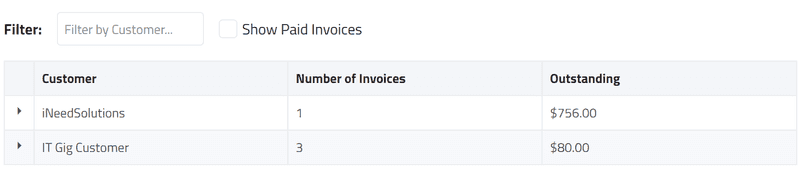
Your invocies will be grouped by customer. From here, you can expand each customer name and view all the invoices for that customer. By default we will show you unpaid invoices. Just select "Show Paid Invoices" to also view those. Additionaly, you may filter your view by customer using the search bar and typing in a customer's name.
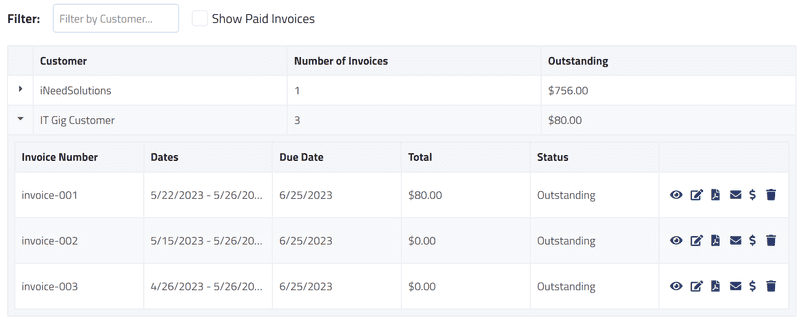
Next to each invoice there are a few actions you can take directly from this screen:
- Preview your invoice. This is helpful if you do not want to leave this page, but want to get a quick overview of the invoice.
- Edit an unpaid invoice
Changes to an invoice will be able to be seen on the customer's end when they go to open it. However, they will not be directly notified of the change. You will have the option to resend them the invoice after you've made changes.
- Generate a PDF of the invoice
- Email the invoice to the customer
- Mark the invoice as paid
If the customer paid through IT-Gig's payment portal, the invoice will automatically get marked paid once their payment has been processed.
- Delete the invoice
Deleting an invoice marks any hours and expenses on that invoice as unbilled. You will be able to re-add them to a new invoice once you are ready.