

Hours Reports
Here we will be going over the Entered Hours Report and the Unbilled Hours Report. Both of these tools can come in handy when it comes to managing the backoffice of your IT-Service work.
Entered Hours Report
This report simply tells you how many hours have been logged for your company within a time frame of your choosing.
This report will include all hours, so billed and unbilled.
- Just choose a start and end date
- Pick the resource you want to view hours for (resources are you and your employees, if any)
- Select one or more projects whose hours you want incorporated into your report
- If all that looks correct, select "Generate Report"
Your Report
Your generated report will show:
- The hours entered per day in chronological order
- Notes for each time entry
Notes can come in handy for a customer that would like to see what you or your resource did for that particular day. Check out TimeSheets for more information on entering notes.
- The customer and project each entry was made for
- A calculation of the total number of hours for each week, and the report as a whole.
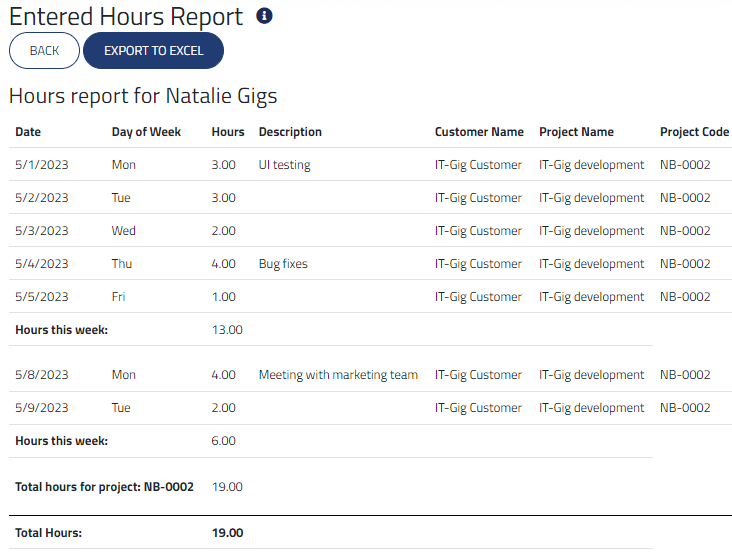
If you would like to store this report, or send it to a customer, you may export it as an excel file!
Unbilled Hours Report
This report simply tells you how many hours have been logged, but not invoiced, for your company within a time frame of your choosing. This can be an especially helpful tool to ensure no hours slip through the cracks between billing periods.
- Just choose a start and end date
- Select one or more projects whose hours you want incorporated into your report
- If all that looks correct, select "Generate Report"
Your Report
Your generated report will show:
- Each unbilled time entry in chronological order
- The resource that created each entry
- The customer and project each entry was made for
- The total number of hours for each week, and the report as a whole.
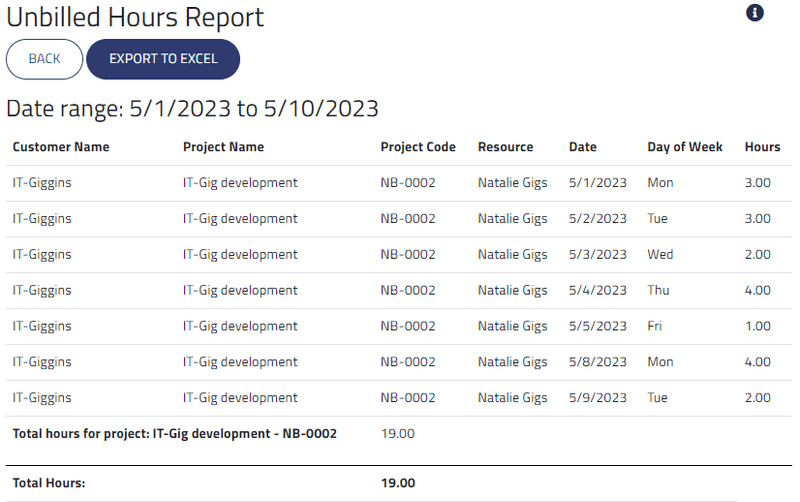
If you would like to store this report, or send it to a customer, you may export it as an excel file!