Invoice Templates
Invoice templates are an awesome feature of IT-Gig that can help you streamline getting paid.
Templates help you quickly create invoices that have some of the same baseline attributes.
For instance, you may have a customer where the amount you want to bill them each month is fixed.
In this case, you can create a template for that customer with that fixed amount, and each month use that template to quickly create and send an invoice.
Consistent income with ease!
In this section we'll be going over how to create an invoice template and how to manage your templates.
Create a Template
- First, you'll want to name your template. It is helpful to name it something that hints to what will be on the invoice.
- Next, you need to choose a customer that this template will be made for.
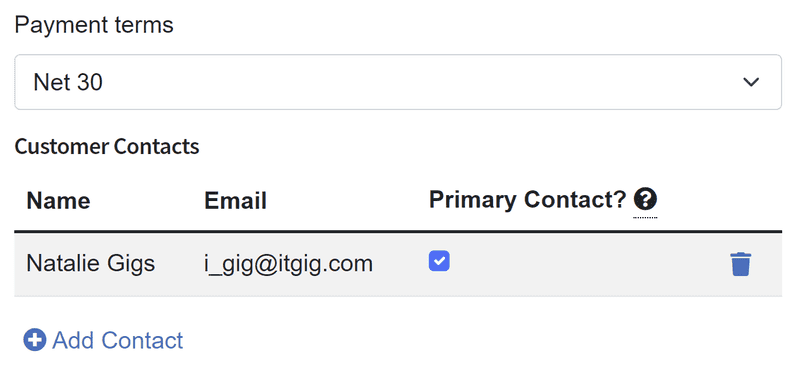
- Once you have chosen a customer, the Payment Terms and Customer Contacts will automatically be added to your template. Confirm that these are the contacts and terms you would like for this template. Feel free to change these as you see fit.
The primary contact will be the primary recipient of your invoice. Any other contacts included in this invoice will be CC'd on the correspondence.
The Net Terms will set the due date of your invoice. For example, Net 30 will set the due date 30 days from the end of the billing period for this invoice.
- Next, you may select a previously created invoice to base your template. This will populate the line items of your template with the same line items as the chosen invoice.
Each invoice choice has a short description to help you choose the correct one. Alternatively, you may continue without choosing an invoice.

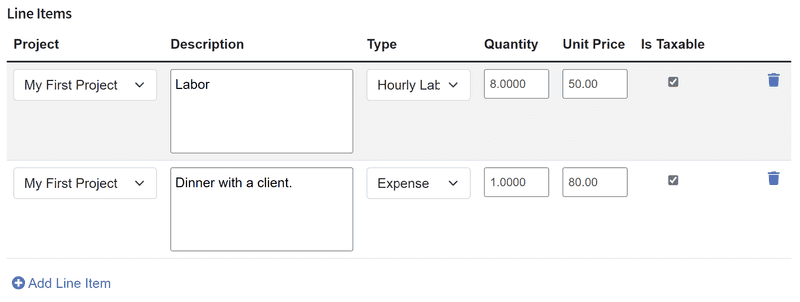
- Now you can add, edit, or delete the line items of your template. If you chose a pre-existing invoice to base this template, you may already have some line items auto-populated.
- Once everything looks good just hit Continue and you will be redirected to the Manage Templates page.
Manage and Use Templates
After you have created your template, you will be redirected to your template management screen. Here you can:
- create new invoices from the template
- edit
- delete

Create an Invoice From a Template
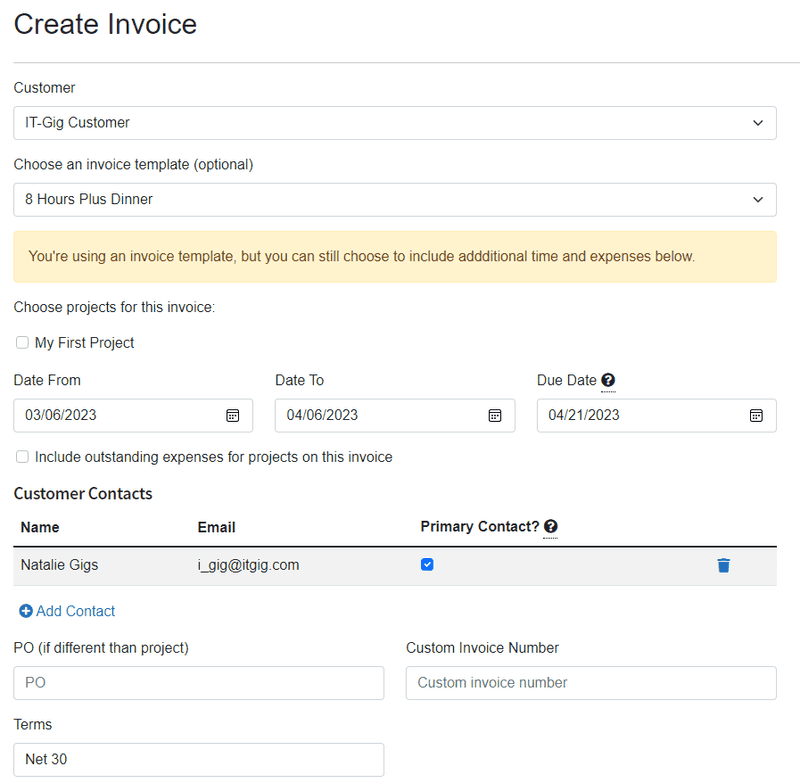
After choosing the first icon to create an invoice from the template, you will be redirected to a "Create Invoice" page. This invoice will be pre-populated and ready to go! Just confirm the details, save, and send!