

Company Settings
In this article we will go over some of the ways you can customize IT-Gig to meet your needs. The following sections will cover:
- Adding and managing users
- Inviting Customers
- Configuring Payment Settings
- Editing your company profile
- Curating your invoice settings
Managing users
If you are a multi-user company, IT Gig can easily meet your needs. First, you will want to navigate to the Manage Users section in the IT Gig menu panel. It will be located under Company Settings.
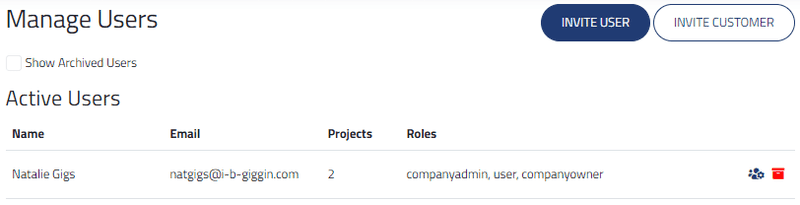
Once you are on this page, just select Invite User and fill in the user's name, email, and role you would like them to have.
The table below shows the capabilities of each role to help you choose the appropriate designation for your new users.
| Ability | Company Owner | Company Admin | User |
|---|---|---|---|
| Log Time in Timesheet | Yes | Yes | Yes |
| Log Expenses | Yes | Yes | Yes |
| Edit Company Settings | Yes | Yes | No |
| Create and Edit Projects | Yes | Yes | No |
| Create and Edit Customers | Yes | Yes | No |
| Create and Send Invoices | Yes | Yes | No |
| View Company Reports | Yes | Yes | No |
| Add and Edit Company Users | Yes | Yes | No |
| Deactivate Account | Yes | No | No |
When you invite a user, they will be sent an email with a link to sign up for an IT-Gig account that will be registered with your company profile. After they have created an account, you will be able to edit roles and archive your users from the Manage Users page.
Inviting Customers
On this same Manage Users page, you can also invite customers. Customers with their own IT-Gig customer admin account will have access to invoices that they still need to pay.
Your customers do not need to create an account to utilize the IT-Gig payment portal. They can just follow the link in their invoice emails to pay them annonymously.
In order to invite a customer, just select the Invite Customer option, and fill in the form. After this customer accepts the invite and creates an account, they will be added to your list of active users. From here you can archive customers that are no longer active with your company.
Configure Payment Settings
If you would like your customers to pay with credit card or checking account, you will need to set up or link a Stripe account.
- Go to Company Settings-> Payment Settings
- Click on Create or Link Stripe Account
- From here, you can either log into your Stripe account and connect it to ITGig or create a new one
The information you provide to Stripe during account creation will not be shared with ITGig
If you created a new Stripe account, it should be active within 15 minutes. If not, login to Stripe and provide any missing information it requests. Once Stripe has verified your information, your account will be active.
-
Stripe charges a fee for transactions (see Stripe for details). Depending on your location's laws, you might be able to pass this fee along to your customer. If so, you can check Add fee to invoice to cover Stripe surcharges.
-
Additionally, you may add a late invoice fee here. This will be passed onto the customer per late invoice they are trying to pay. So if your customer is paying two invoices, and both are late, the fee will be doubled.
Edit Company Profile
To edit your company profile just select Company Settings in the side-bar menu and then select Edit Company Profile. Below are the options you can add and edit for your company.
| Field | Description | Required |
|---|---|---|
| Company Name | The name of your company | Yes |
| Primary Email Contact | The email address that IT-Gig will use to send correspondences related to your account | Yes |
| Company Address | The address of your company | Yes |
| Company Phone | The phone number of your company | Yes |
| Company Logo | The logo of your company that will appear at the top of your invoices | No |
| Email Signature | The signature that will appear at the bottom of all emails sent from your company through IT-Gig | No |
Invocie Settings
To edit your invoice settings just select Company Settings in the side-bar menu and then select Invoice Settings. Below are the settings you can utilize in order to streamline invoice creation and invoice management.
| Field | Description | Required |
|---|---|---|
| Default Comment | A message to your customer that will appear at the bottom of your invoice | No |
| Invoice Number Basis | The basis for your invoice number being: Your company, the customer, the project | Yes |
| Number of Digits | The number of digits that will appear in your invoice number | Yes |
| Invoice Name Prefix | The prefix that will appear before your invoice number. The default will be 'invoice'. | No |